
Google Classroom Suitability Checker
Answer the following questions about your institution's needs to get a personalized recommendation.
Recommendation
Teachers often ask if Google Classroom is just another folder or a full-fledged learning system. The short answer is yes, it is a digital platform, but calling it a "Learning Management System" (LMS) might be an overstatement for some contexts. It sits in a specific niche: a lightweight, cloud-based collaboration tool designed primarily for K-12 and higher education environments that already use the Google Workspace ecosystem.
If you are evaluating whether to adopt this tool for your school or university, understanding exactly what it does-and doesn't do-is critical. This article breaks down the technical architecture, user experience, and practical limitations of the platform so you can decide if it fits your educational goals.
Defining the Platform Architecture
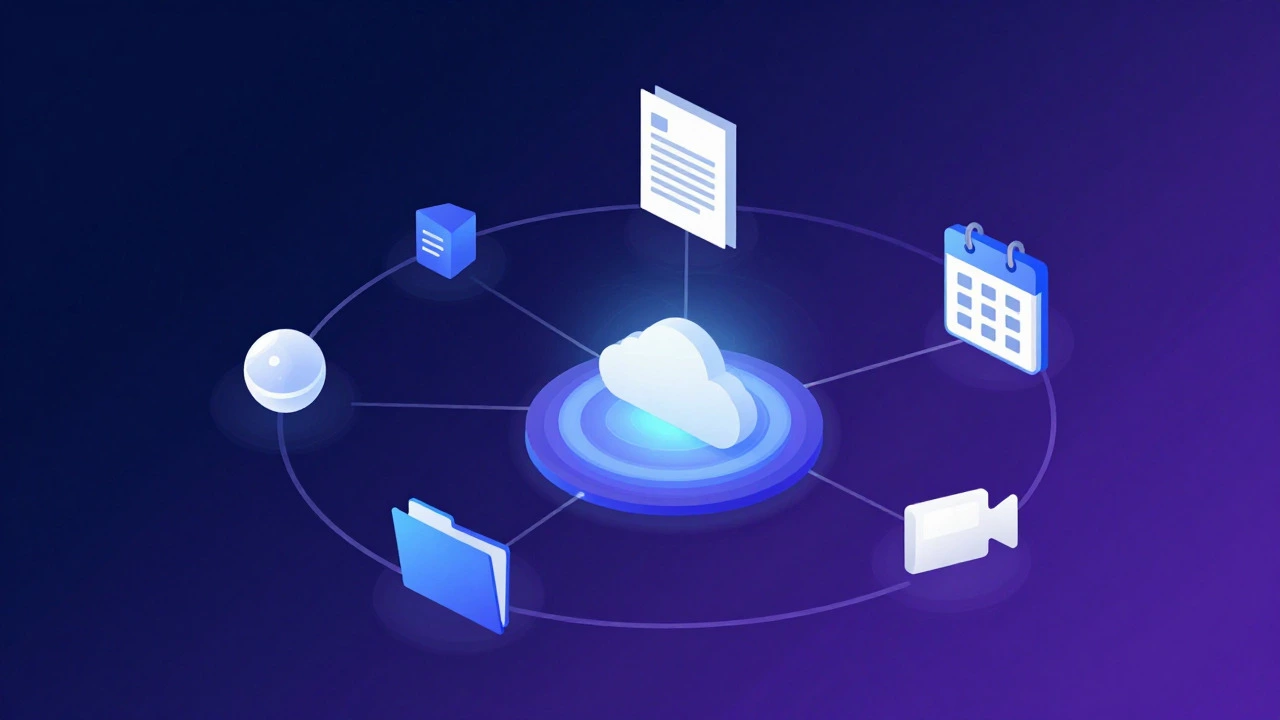
Google Classroom is a free web application developed by Google that allows educators to create and manage classes, distribute assignments, and communicate with students without exchanging emails. It was first launched in 2014 as part of the Google Apps for Education suite. Unlike standalone LMSs like Blackboard or Canvas, Classroom does not have its own database for student records; instead, it relies entirely on the underlying infrastructure of Google Drive, Google Docs, and Google Calendar.
This architectural choice has significant implications. Because every assignment is essentially a file stored in a shared Drive folder, version control and file management are handled natively by Google's cloud storage services. There is no separate login for the class itself; access is controlled through the Google account permissions. This means the platform is deeply integrated into the broader Google Workspace for Education ecosystem, which includes Gmail, Meet, and Keep.
Core Functionalities and User Roles
The platform operates on a simple role-based structure. There are two primary roles: Teachers and Students. Each role interacts with distinct interfaces tailored to their workflow.
- Teacher Dashboard: Allows for the creation of multiple class sections. Teachers can post announcements, assign work using templates from Drive, and grade submissions directly within the interface. The grading feature supports rubrics and inline comments on documents.
- Student View: Students see a stream of posts organized by class. They can submit work by linking files, creating new documents, or uploading existing ones. The interface highlights due dates and status indicators (not turned in, late, graded).
- Stream and Classwork Tabs: The "Stream" tab acts as a news feed for announcements and discussions. The "Classwork" tab organizes assignments into folders, making it easier for students to find past work without digging through email inboxes.
A key differentiator here is the lack of complex administrative controls compared to enterprise LMSs. There is no built-in module for attendance tracking, grade book aggregation across semesters, or detailed analytics on student engagement beyond basic submission timestamps. This simplicity is both its greatest strength for quick adoption and its biggest limitation for large-scale institutional reporting.
Comparison with Traditional LMSs
To understand where Classroom fits, it helps to compare it against traditional Learning Management Systems. While all these tools aim to digitize classroom workflows, their depth and complexity vary significantly.
| Feature | Google Classroom | Moodle | Canvas |
|---|---|---|---|
| Primary Use Case | K-12 / Small Higher Ed groups | Universities / Open Courseware | Higher Ed / Corporate Training |
| Cost Model | Free (with Workspace) | Open Source (Self-hosted costs) | Paid Subscription |
| Grade Book Complexity | Basic per-assignment | Advanced multi-criteria | Advanced multi-criteria |
| Integration Ecosystem | Native Google Apps | Extensive via Plugins | Extensive via API |
| Setup Time | Minutes | Hours to Days | Days to Weeks |
As shown in the table, Moodle and Canvas offer deeper customization options. Moodle, for instance, is highly modular and can handle complex course structures with prerequisites and conditional content release. Canvas offers robust analytics and mobile app features that go far beyond basic document submission. In contrast, Classroom prioritizes speed and ease of use. If your institution needs granular control over curriculum delivery, Classroom may feel too restrictive. However, if the goal is simply to eliminate paper handouts and streamline feedback loops, Classroom excels.
Technical Requirements and Accessibility
Since Classroom is a web-based application, it requires a stable internet connection and a modern web browser. It is compatible with Chrome, Firefox, Safari, and Edge. For offline access, users rely on the companion apps for iOS and Android, which allow limited viewing and submission capabilities when disconnected, though synchronization occurs once connectivity is restored.
Accessibility is a strong point for the platform. Being built on Google’s standards, it adheres to WCAG 2.0 AA guidelines. Screen readers like JAWS and NVDA work well with the interface, and keyboard navigation is supported throughout the dashboard. However, teachers should be aware that custom plugins or third-party integrations added via the "Add-ons" section may not always maintain the same level of accessibility compliance as the core platform.
Common Pitfalls and Workarounds
Even with a polished product, users encounter friction points. Here are three common issues and how to address them:
- File Version Confusion: When a teacher edits an assignment template after students have started working, it can cause confusion about which version is current. Solution: Always lock the original template file in Drive before assigning it, or use the "Make a copy" instruction explicitly in the assignment description.
- Lack of Communication History: Announcements disappear from the top of the stream quickly. Solution: Pin important announcements using the star icon, or move critical policy updates to a dedicated "Pinned Post" at the top of the Stream.
- Grading Bottlenecks: Grading large cohorts manually in the browser can be slow. Solution: Use keyboard shortcuts (e.g., 'G' for next submission) and consider batch-grading similar assignments together to reduce context switching.

Is It Right for Your Institution?
Deciding whether to implement Google Classroom depends heavily on your existing tech stack. If your school already uses Gmail and Google Drive for daily operations, the migration cost is nearly zero. The data silos are minimal because everything lives in one place. Conversely, if your institution runs on Microsoft 365, integrating Classroom adds a layer of complexity, requiring users to switch between ecosystems for file storage and communication.
For small private schools, tutoring centers, or individual instructors, Classroom provides a professional-grade solution without the overhead of managing a server or paying for premium licenses. For large universities with complex accreditation requirements, it is better suited as a supplementary tool for specific courses rather than the central hub for all academic administration.
Frequently Asked Questions
Does Google Classroom cost money for schools?
For most K-12 schools and non-profit organizations, Google Classroom is free as part of the Google Workspace for Education Fundamentals plan. Higher education institutions may need to purchase additional seats depending on their size and specific feature requirements, but the core classroom functionality remains accessible at no direct cost to the end-user.
Can I use Google Classroom without a school domain?
Yes. Individual teachers and tutors can sign up with a personal Google Account to create classes. However, there are limits on the number of students per class (typically 30 for personal accounts) compared to verified school domains which allow unlimited students. Personal accounts also lack some administrative controls available to district administrators.
How does data privacy work in Google Classroom?
Data is stored on Google's servers in compliant data centers. For US schools, the FERPA law protects student data. Internationally, GDPR regulations apply. Administrators can control data retention periods and enable/disable specific features like student-to-student sharing. It is recommended to review the Data Processing Agreement with Google if you are operating outside the United States.
Can students edit their submitted assignments after turning them in?
By default, once a student turns in an assignment, the file is locked from further editing to preserve the integrity of the submission. However, teachers can return the assignment, which unlocks it for the student to make changes and resubmit. This creates a clear audit trail of revisions.
What happens to classes when a teacher leaves?
Classes do not automatically delete when a teacher leaves. The administrator must transfer ownership of the class to another teacher or archive it. If a teacher simply deletes their account, the classes may become orphaned unless properly transferred beforehand. This is a critical step in staff offboarding processes.